
How to Clean Up Your Desktop, Documents, and Downloads Without Creating a Bigger Mess
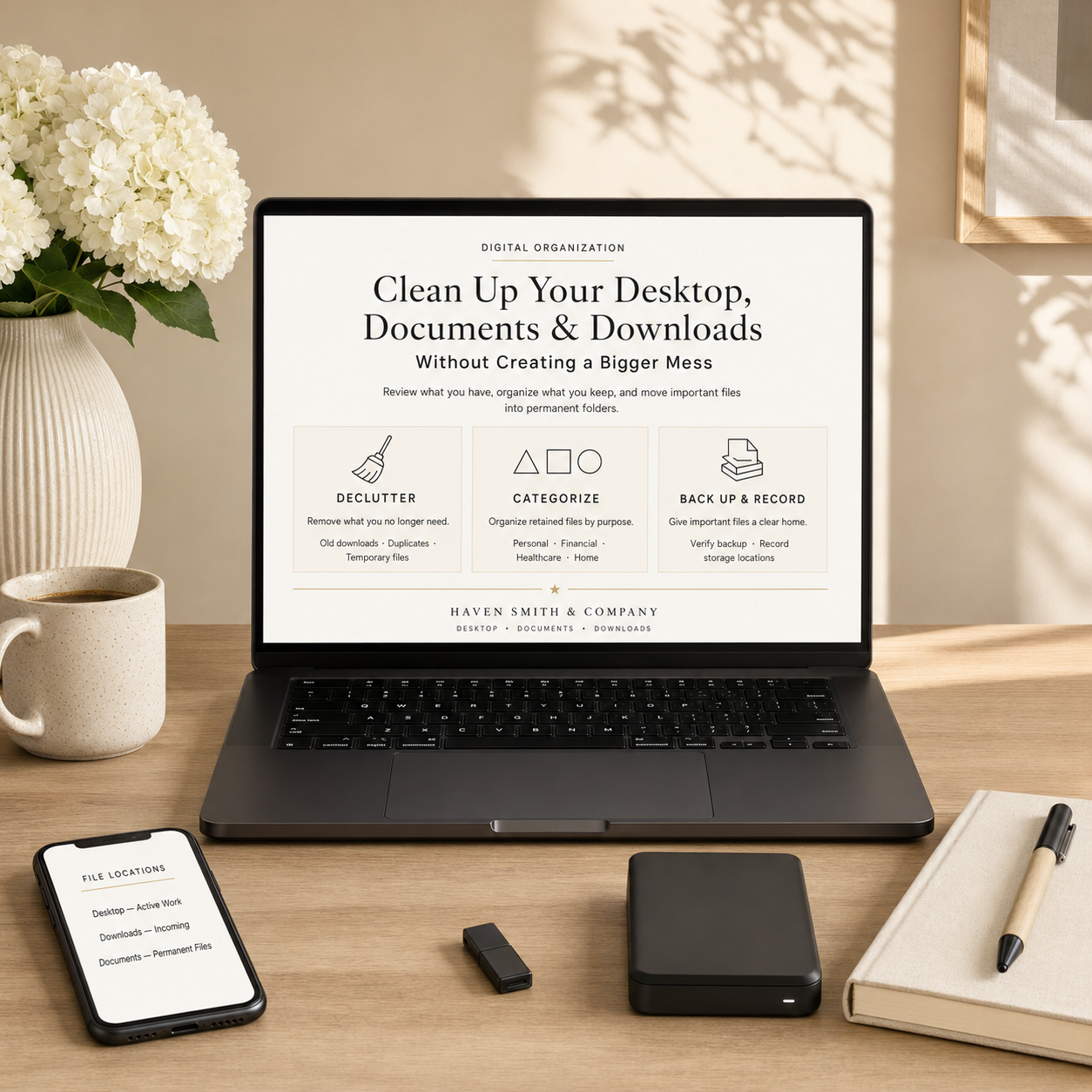
A Practical Method for Decluttering Temporary Files, Organizing What You Keep, and Moving Important Files Into Permanent Folders
Your Desktop, Documents, and Downloads folders often become catch-all locations for unfinished work and forgotten files.
A document is downloaded for one task and never moved. A screenshot is saved to answer a temporary question and remains for years. A file is placed on the Desktop because its permanent location is not immediately obvious. Documents accumulate without being organized into useful categories.
Over time, these small decisions create a mixture of old downloads, duplicate documents, installation files, ZIP files, screenshots, PDFs, unfinished work, and important records. Finding one useful file becomes more difficult because it is surrounded by information that no longer serves a purpose.
The response is often to move everything into a new folder called “Desktop Cleanup,” “Old Files,” or “To Sort.” The visible clutter disappears, but none of the underlying decisions have been made. The new folder simply becomes another catch-all location.
A useful cleanup follows a different process. You inventory what you have, remove what you no longer need, categorize what you choose to keep, and move important files into clear permanent folders. You then confirm that those files are backed up and record where important information is stored.
Understand the Purpose of Each Location
Before cleaning these folders, decide what each location should be used for.
The Desktop Is for Active Work
The Desktop can provide convenient access to files you are currently using. It should not become the permanent home for completed work, important records, or years of miscellaneous documents.
When you finish working with a Desktop file, make a decision. Move it to its permanent location, archive it when appropriate, or delete it if it no longer serves a purpose.
Downloads Is an Incoming Area
The Downloads folder is where files arrive. It may contain documents downloaded from financial accounts, healthcare portals, email messages, websites, business platforms, and other services.
It also collects software installers, duplicate downloads, temporary PDFs, compressed files, and images saved for short-term use.
Treat Downloads as an incoming area rather than permanent storage. Review each file, determine whether it should be retained, and move important material to the location where it belongs. Once a retained file has been filed appropriately, remove the extra copy from Downloads when it is safe to do so.
Documents Is for Retained Information
The Documents folder is generally better suited to retained files, but it can still become disorganized when everything is saved at the top level or divided among vague and overlapping folders.
Documents should contain clear categories that reflect the parts of your life the files support. Depending on your storage arrangement, those permanent folders may exist locally, within a synchronized cloud location, or somewhere else you have deliberately selected.
What matters is that important files have a clear home and are not left indefinitely in temporary workspaces.
Protect Important Files Before You Begin
Before deleting or moving a large number of files, confirm that important information is appropriately backed up. Understand which location contains the primary file, where the backup exists, and how a file could be recovered if it were removed by mistake.
Several copies with similar names do not automatically create a dependable backup. You may have an outdated version on the Desktop, another copy in Downloads, and the current version somewhere in Documents. That arrangement creates uncertainty because it is not clear which file is authoritative.
During the initial cleanup, avoid emptying the trash immediately. Leaving removed files there temporarily gives you time to review the results and recover something if necessary.
If you do not know whether a file is stored locally, synchronized through a cloud service, or included in a backup, determine that before making significant changes. Moving or deleting a synchronized file may affect its availability on other devices.
Inventory the Desktop, Documents, and Downloads
Review each location separately. Do not begin by moving everything into one combined cleanup folder.
Start with the Desktop and identify:
Files related to active work
Completed files that need permanent homes
Temporary screenshots or references
Important documents
Duplicate files
Folders transferred from previous projects
Items you no longer recognize
Then review Downloads and identify:
Recent files that still need to be processed
Records that belong in permanent folders
Old downloads
Installation files
ZIP archives
Duplicate downloads
Temporary PDFs and images
Files whose purpose has passed
Finally, review Documents and identify:
Files stored at the top level
Vague folders
Duplicate or competing categories
Old project folders
Records that belong together
Files that may already exist elsewhere
Information that still needs a permanent location
The objective of the inventory is not to document every filename. It is to understand what has accumulated and recognize the types of decisions the cleanup will require.
Declutter the High-Confidence Items First
Begin with files that are easier to evaluate. This creates visible progress without forcing difficult decisions about important records.
Old Downloads
Review files downloaded for completed tasks, past events, expired applications, or temporary reference. If a downloaded file still matters, move it to its permanent location before removing the copy from Downloads.
A file should not remain in Downloads merely because you are afraid you will not find it elsewhere. Give it a clear home and confirm that it opens correctly from that location.
Duplicate Documents
Similar filenames may indicate duplicate files, but confirm the contents before deleting anything. One copy may be newer, complete, signed, edited, or stored in a different format.
Compare the files and determine which version should be retained. Move that version to its permanent home and remove unnecessary copies only after you have verified the retained file.
Software Installers
Software installers may remain in Downloads after an application has been installed. Confirm that the file is only an installer and that it can be downloaded again if needed before removing it.
Do not delete unfamiliar files merely because they appear technical. If you do not recognize an item, research it or ask for qualified technical help.
ZIP Files
ZIP files are compressed archives that may contain one file or an entire folder. If you have already extracted the contents, confirm that the extracted files are complete before deleting the ZIP file.
Some ZIP files may need to be retained as received, particularly when they contain records, project materials, or an archive you may need later. Make that decision based on what the file contains and why it was received.
Temporary Files
Temporary files may include drafts, exports, copied materials, and documents created for a short-term task. Remove them when their purpose has passed, but confirm that they are not the only copies of information that should be retained.
Screenshots and PDFs No Longer Needed
Screenshots and downloaded PDFs accumulate quickly because they are easy to create and save. Review them according to their purpose.
Delete screenshots used for temporary reference when they are no longer needed. Move important financial, healthcare, legal, business, family, or household records into the appropriate permanent folders.
A screenshot of a document may not be the best version to retain when the original file is available. Preserve the most useful and complete version.
Empty Folders
Remove empty folders that no longer support the permanent structure. Before deleting one, confirm that it is actually empty and not merely displaying filtered or hidden contents you have not reviewed.
Files Already Stored Elsewhere
If a file already exists in its permanent location, confirm that the retained copy opens correctly and is included in your backup arrangement. Then remove the unnecessary copy from the Desktop or Downloads folder.
Do not remove a file based solely on a similar name. Verify that the other copy is complete and current.
Archive Files When You Are Unsure
Not every file will produce an immediate keep-or-delete decision. When you are uncertain, archiving can be more appropriate than rushed deletion.
A useful archive should have:
A clear name
A known storage location
A defined purpose
An appropriate backup
A date or schedule for later review
An archive is not the same as moving everything into a folder called “Stuff,” “Miscellaneous,” or “To Sort.” Those names conceal the contents and postpone the same decision indefinitely.
A clearer archive name might identify the source, subject, and date range, such as:
Archived_Home_Project_2023
Former_Business_Records_2021-2024
Previous_Computer_Files_Review_By_2026-12
The archive should help you understand why the files remain and what needs to happen next.
Categorize Retained Files by Purpose
After removing high-confidence clutter, categorize the files you have chosen to keep.
Organize them according to the part of your life they support rather than their file type. Your primary categories might include:
Personal
Financial
Healthcare
Legal
Home
Family
Business
This approach keeps related information together. A Home folder, for example, might contain a PDF insurance policy, a spreadsheet of repairs, photographs of improvements, and a word-processing document with contractor information.
Organizing by file type would separate those materials into PDFs, spreadsheets, images, and documents even though they support the same responsibility.
The categories should reflect your actual life. You may not need every category listed above, and you may need another category related to your work, property, caregiving, education, or community responsibilities.
Keep the structure simple. If you repeatedly wonder where a file belongs, the categories may overlap or include too many levels.
Move Files Into Their Permanent Locations
Once a retained file has a clear category, move it from the Desktop or Downloads folder into its permanent location.
Follow these principles:
Move important files into permanent folders.
Remove retained files from Downloads after filing.
Keep the Desktop for active work only.
Keep related information together.
Avoid unnecessary duplicate folders.
Use one clear location for the primary file.
Confirm that moved files open correctly.
Record important storage locations.
Do not move hundreds of files merely to make the Desktop look empty. The purpose is to give each retained file a logical home.
Work in manageable groups. You might begin with financial records, then healthcare documents, and then completed household projects. Finishing one useful category is better than spreading partial decisions across the entire computer.
Use Clear File Names
A permanent folder structure works better when filenames explain what the files contain.
Use names that are clear, descriptive, and consistent. Include a date when it helps identify the document, using a consistent format such as YYYY-MM-DD.
Instead of:
Document1.pdf
Scan.pdf
Statement Final New.pdf
Use names such as:
2026-07_Bank_Statement.pdf
2026-07-31_Home_Insurance_Policy.pdf
2026_Healthcare_Claim_Record.pdf
You do not need to rename every historical file during the initial cleanup. Begin with important records, recurring documents, and files whose current names make them difficult to identify.
The larger file-naming and folder-structure process can be handled separately after the Desktop, Documents, and Downloads folders are under control.
Back Up and Record What You Changed
The cleanup is not complete when the Desktop looks empty. Important files need appropriate backup, and you need to know where they are stored.
After moving retained files:
Verify that important files are backed up.
Confirm that files open from their permanent locations.
Remove extra copies from Downloads after filing.
Return the Desktop to active work only.
Record important storage locations.
Update the Digital Life Management Workbook™.
Record unresolved archives that still need review.
Your record might include:
The primary location for personal documents
The location of financial records
The cloud service used for active files
The external drive or other location used for backup
The location of archived information
Any folders that another person may someday need to find
This creates useful knowledge beyond the immediate cleanup. It can support future computer replacement, backup recovery, household management, business continuity, and emergency preparation.
Maintain the Three Locations
Desktop, Documents, and Downloads will continue receiving new files. A simple review schedule prevents them from becoming catch-all locations again.
Clean Up Weekly
Each week:
Review recent downloads.
Move retained files into permanent folders.
Delete temporary files whose purpose has passed.
Remove completed work from the Desktop.
Review screenshots and temporary PDFs.
File records received during the week.
Revisit items left for a later decision.
The review does not need to take long when it happens regularly. The purpose is to prevent temporary decisions from becoming permanent clutter.
Back Up Monthly
Each month:
Confirm that important files are backed up.
Verify primary storage locations.
Review archive folders and unresolved material.
Check whether storage locations have changed.
Update the Digital Life Management Workbook™ when needed.
Test access to an appropriate backed-up file.
The schedule may vary based on how frequently your files change and the responsibilities they support. The important point is to make both cleanup and backup recurring practices.
Common Desktop, Documents, and Downloads Mistakes
Moving Everything Into One Cleanup Folder
This may clear the visible workspace, but it creates another catch-all location. Review and categorize the files instead of relocating the entire problem.
Treating Downloads as Permanent Storage
Downloads is an incoming area. Important files should be moved into appropriate permanent folders after they are reviewed.
Leaving Completed Work on the Desktop
Keep the Desktop for active work only. Move completed files to their permanent homes or remove them when they no longer serve a purpose.
Organizing by File Type
PDFs, spreadsheets, images, and word-processing documents may support the same responsibility. Organizing by purpose keeps related information together.
Deleting Possible Duplicates Without Comparing Them
Files with similar names may contain different versions, dates, signatures, edits, or information. Verify the retained copy before removing another.
Creating Too Many Categories
A complicated folder structure creates more decisions. Use broad, recognizable categories and add another folder only when it serves a clear recurring need.
Forgetting to Record Storage Locations
Moving files does not help another person—or your future self—if no one knows where important information was placed. Record the primary locations and backup arrangements that matter.
When the Cleanup Reveals a Larger Organization Problem
Cleaning the Desktop, Documents, and Downloads folders may reveal that files are also scattered across several computers, cloud accounts, external drives, and old backups.
That larger issue requires additional decisions:
Which cloud service holds active files?
Which location contains primary copies?
Which external drives are backups?
Which folders are long-term archives?
Which copies are outdated?
Which storage locations should be retained or retired?
Do not force all of those decisions into one cleanup session. Complete the Desktop, Documents, and Downloads review, record what you discover, and then address cloud and external storage as a separate project.
Build a File Structure You Can Maintain
The Digital Organization Course is Month One of the Digital Life Management System™. It guides you through inventorying and editing your accounts, files, devices, and records; organizing retained information; moving files into appropriate storage; and recording where important information belongs.
Cleaning the Desktop, Documents, and Downloads folders can resolve immediate clutter. The course helps you build the broader digital organization foundation that keeps those locations from becoming overwhelmed again.
Explore the Digital Organization Course
The Digital Life Management Workbook™ provides a practical spreadsheet for recording important files, storage locations, backup arrangements, devices, accounts, and digital responsibilities.
Explore the Digital Life Management Workbook™
If your files are spread across several computers, cloud accounts, external drives, and old folders, a Digital Life Strategy Session can help you understand the larger organization problem and determine where to begin.
Book a Digital Life Strategy Session
You can also download the free Digital Organization Quick Start Guide for a practical introduction to organizing your accounts, files, devices, and digital records.
Frequently Asked Questions
What should I delete from my Downloads folder?
Review old downloads, duplicate documents, software installers, ZIP files, temporary files, screenshots and PDFs you no longer need, empty folders, and files already stored elsewhere. Confirm that important files have a permanent home and appropriate backup before deleting an extra copy.
Should I store files on my Desktop?
Use the Desktop for active work only. When the work is complete, move the file to its permanent folder, archive it when appropriate, or delete it if it no longer serves a purpose.
How should I organize my Documents folder?
Organize files by purpose, using categories such as Personal, Financial, Healthcare, Legal, Home, Family, and Business. Keep the structure simple enough that each retained file has an obvious home.
What should I do when I am uncertain about deleting a file?
Place the file in a clearly labeled archive rather than deleting it immediately. Store the archive in a known location, back it up when appropriate, and schedule a later review.
How often should I clean up my Desktop and Downloads?
Review temporary workspaces weekly. Confirm backup, review important storage locations, and update your records monthly or according to how frequently your important files change.
How should I name computer files?
Use clear, descriptive, and consistent filenames. Include dates when helpful, and avoid vague names such as Document1, Scan.pdf, and New Folder.
Should I organize files by type or purpose?
Organize by purpose. Files with different formats may support the same financial, healthcare, legal, home, family, personal, or business responsibility and are usually more useful when stored together.
Give Every Important File a Clear Home
A successful cleanup is not measured by how empty the Desktop looks or how many files were deleted. It is measured by whether retained information has a clear permanent home, an appropriate backup, and a location you can find and record.
Your Desktop and Downloads folder should support active work rather than become permanent storage. When those temporary spaces are reviewed regularly and important files are organized by purpose, your computer becomes easier to understand and maintain.