
Samsung Gallery Is Ending Direct OneDrive Sync: What to Do Before September 30
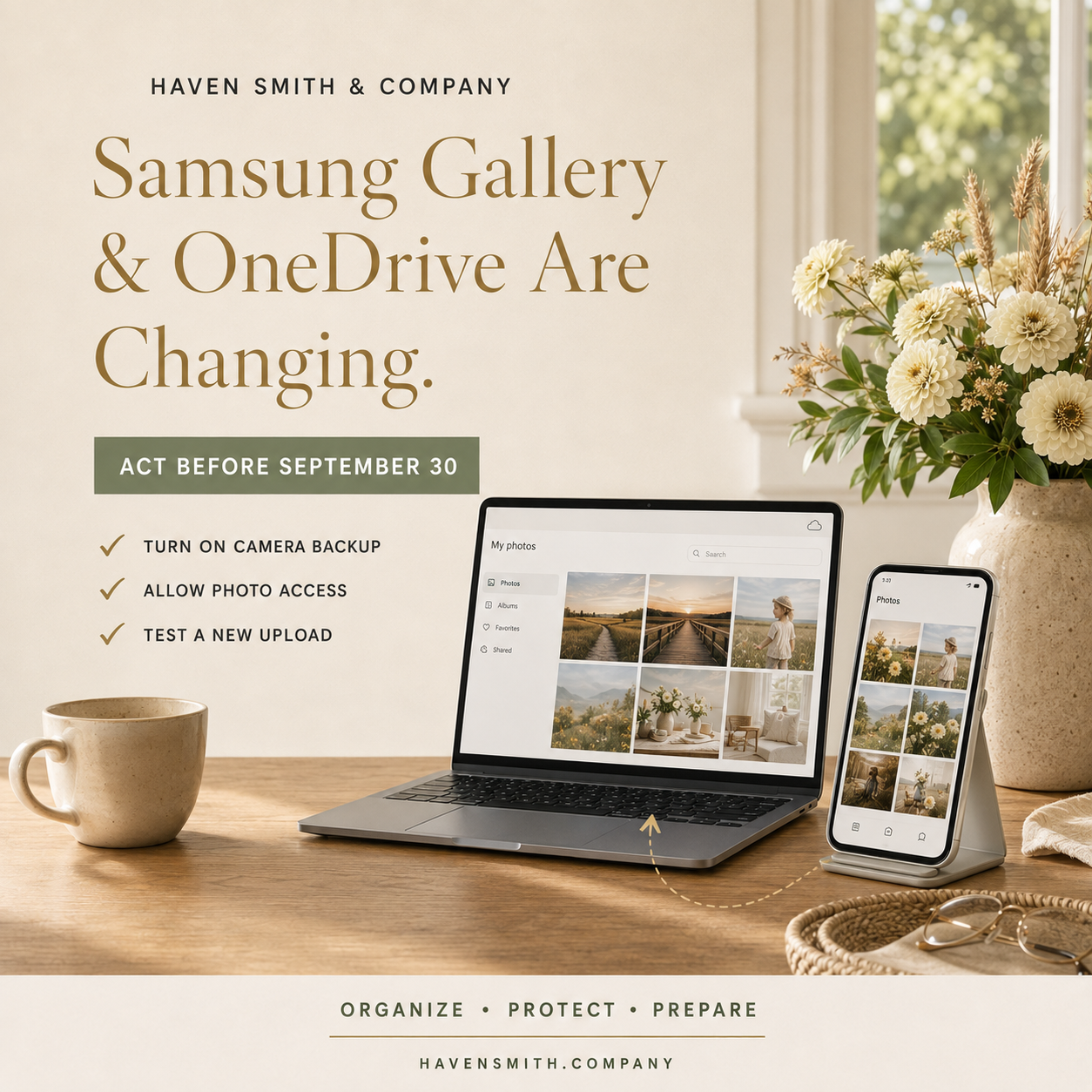
Existing OneDrive photographs are not being deleted, but Samsung users must change their settings if they want new photographs to continue backing up.
Microsoft is ending the direct connection between Samsung Gallery and OneDrive on September 30, 2026.
If you use this integration, the change does not mean your existing OneDrive photographs will be deleted. They will remain available through OneDrive.
However, photographs stored in OneDrive will stop appearing through Samsung Gallery, and new photographs will not continue uploading unless you enable OneDrive camera backup and give the OneDrive application permission to access your photographs and videos.
This is a manageable change—but only if you know that it is happening.
If You Read Only One Thing
Existing OneDrive photographs will remain available, but affected Samsung users must enable OneDrive camera backup if they want new photographs to continue uploading after September 30.
Your Action Steps
If you use Samsung Gallery with OneDrive:
Confirm whether Samsung Gallery currently says it is synchronizing with OneDrive.
Install or update the Microsoft OneDrive application.
Sign in to the correct personal OneDrive account.
Give OneDrive access to all photographs and videos.
Turn on camera backup.
Take a new test photograph.
Confirm that the photograph appears inside OneDrive.
Visit OneDrive on the web and verify that older photographs remain accessible.
Complete these steps before September 30.
What Is Changing?
Microsoft says Samsung Gallery will no longer synchronize directly with OneDrive beginning September 30, 2026.
After the change:
New users will not be able to link Samsung Gallery and OneDrive.
Existing OneDrive photographs and videos will remain safe and unchanged.
OneDrive photographs will no longer appear within the Samsung Gallery application through the current integration.
New photographs will upload only if OneDrive camera backup is turned on.
OneDrive must have permission to access the device’s photographs and videos.
The change affects people who use OneDrive on Samsung devices, including anyone who has previously used the Samsung Gallery synchronization feature. Read Microsoft’s official announcement.
Your Existing Photographs Are Not Being Deleted
This distinction is important.
The end of the Samsung Gallery integration does not mean Microsoft is deleting photographs already stored in OneDrive. Those photographs should remain available through:
The OneDrive mobile application
OneDrive on another connected device
OneDrive.com
Other supported OneDrive applications
What changes is the interface through which you see and manage them.
If someone opens Samsung Gallery after the change and no longer sees older OneDrive photographs, they may understandably believe the photographs have disappeared. The first place to check is the OneDrive application or website.
Turn On OneDrive Camera Backup
The exact appearance of the settings may vary according to the device and application version, but the process should generally involve:
Open the OneDrive application.
Confirm that you are using the correct Microsoft account.
Open the application’s settings.
Locate Camera Backup.
Turn camera backup on.
Allow OneDrive to access your photographs and videos.
Review whether you want videos, screenshots, or additional folders included.
Do not assume that installing OneDrive automatically turns camera backup on. Verify the setting directly.
Confirm That It Actually Works
A backup setting should be tested.
After enabling camera backup:
Connect the device to the internet.
Take a new test photograph.
Open OneDrive.
Allow the upload to complete.
Locate the photograph in OneDrive.
If possible, sign in at OneDrive.com from another device and confirm that the photograph appears there.
This test answers the question that matters: is the new photograph reaching the account you expect?
Also check the date of the newest photograph already in OneDrive. A camera-backup setting can appear enabled even when uploads have stopped because of permissions, battery restrictions, account confusion, storage limitations, or another problem.
Watch for Duplicate Uploads
Microsoft notes that changing between Samsung Gallery synchronization and OneDrive camera upload can cause eligible photographs to upload again.
That means some people may see duplicates after changing methods.
Do not respond by immediately deleting large numbers of photographs. First determine:
Whether the items are true duplicates
Whether they exist in OneDrive, Samsung Gallery, or both
Whether one copy contains different metadata, edits, or resolution
Whether deletion will synchronize to another location
It is better to tolerate temporary duplicates than to accidentally remove the only complete copy of an important photograph.
Verify the Account
Many people have more than one Microsoft account:
A personal account
A work account
A school account
An older account using a different email address
Confirm which account holds the existing photograph library before changing settings. If the OneDrive application displays an unexpectedly empty library, account confusion may be the explanation.
Microsoft says the Samsung Gallery connection applies to personal OneDrive accounts rather than work or school accounts.
The Larger Digital Life Management Lesson
Platform integrations are convenient, but they are not permanent promises.
Companies change features, permissions, application relationships, storage policies, and supported devices. An arrangement that worked automatically for years can stop with an email or notification that is easy to overlook.
For important photographs and videos:
Know which company actually stores them.
Confirm which account is being used.
Test that new files are uploading.
Understand how deletion behaves.
Maintain an additional backup for irreplaceable information.
Review the system whenever a platform announces a change.
The safest response is not panic. It is verification.
Resources Outside Haven Smith & Company
Haven Smith & Company Resources
Digital Organization Course:
https://www.havensmith.company/digital-organizationDigital Life Management Course Bundle:
https://www.havensmith.company/bundleFree Digital Life Management resources:
https://www.havensmith.company/start-hereBook a free 15-minute consultation:
https://www.havensmith.company/free-consultation